
WAVE Accessibility Testing: A Quick Start Guide
This quick-start guide introduces SDSU web developers and content editors to using the WAVE browser extension alongside Pope Tech.
On this page:
- What is WAVE?
- Using WAVE with Pope Tech
- Install WAVE
- Understand WAVE results
- Explore the five WAVE panels
What is WAVE?
WAVE is a web accessibility evaluation tool developed by WebAIM. It identifies potential accessibility barriers and displays its findings directly on the evaluated webpage. WAVE can help web developers and content editors locate errors, review page structure, examine color contrast, and identify elements that require human evaluation.
WAVE does not certify that a webpage is accessible or compliant. Automated testing can identify only some accessibility issues, so WAVE results should be combined with manual review, including keyboard testing and evaluation of content in context. WebAIM explains this distinction clearly in its WAVE Help documentation.
How WAVE works with Pope Tech
Pope Tech uses the WAVE accessibility testing engine to scan and monitor websites at scale. The WAVE browser extension complements Pope Tech by allowing developers to examine an individual webpage directly in their browser.
A typical workflow is:
- Use Pope Tech to identify a website, page, or recurring issue that needs attention.
- Open the affected page in your browser.
- Launch the WAVE extension.
- Locate and evaluate the reported issue in context.
- Correct the content or code.
- Run WAVE again to confirm the correction.
- Rescan the page or website in Pope Tech when appropriate.
The WAVE extension can also evaluate password-protected, dynamically generated, intranet, and unpublished content because the analysis occurs within the browser. According to WebAIM, page information is not transmitted to the WAVE server when using the extension. Learn more about the WAVE browser extensions.
Install and launch WAVE
WAVE is available as a free extension for Chrome, Firefox, and Microsoft Edge.
To evaluate a webpage:
- Install the appropriate WAVE browser extension.
- Navigate to the page you want to evaluate.
- Select the WAVE icon in the browser toolbar.
- Review the results displayed in the WAVE sidebar and on the page.
- Refresh the webpage or select the extension again to close the WAVE interface.
On a Mac, WAVE can also be launched with Command + Shift + U. On Windows, use Control + Shift + U.
Understanding WAVE results
Select a linked result type below to open the related Pope Tech Result Documentation. Each resource explains what the result means, why it matters for accessibility, how to evaluate or correct it, and which WCAG criteria may apply.
| Result | What it means | Recommended action |
|---|---|---|
| Errors | Issues that are highly likely to create accessibility barriers | Prioritize, investigate, and correct |
| Contrast Errors | Text or interface elements that do not meet contrast requirements | Verify the colors and adjust them |
| Alerts | Elements that may present accessibility concerns | Review manually; not every alert is an error |
| Features | Elements that may improve accessibility | Confirm they are implemented appropriately |
| Structure | Headings, lists, landmarks, and other structural elements | Review the organization and reading order |
| ARIA | ARIA roles, names, states, and properties | Confirm the ARIA is necessary and used correctly |
*The goal is not to eliminate every WAVE icon. Red errors generally require correction, but alerts, features, structural indicators, and ARIA annotations are provided to support human evaluation. Their presence does not automatically mean something is wrong. WebAIM’s WAVE Help page explains the icon categories and their intended use.
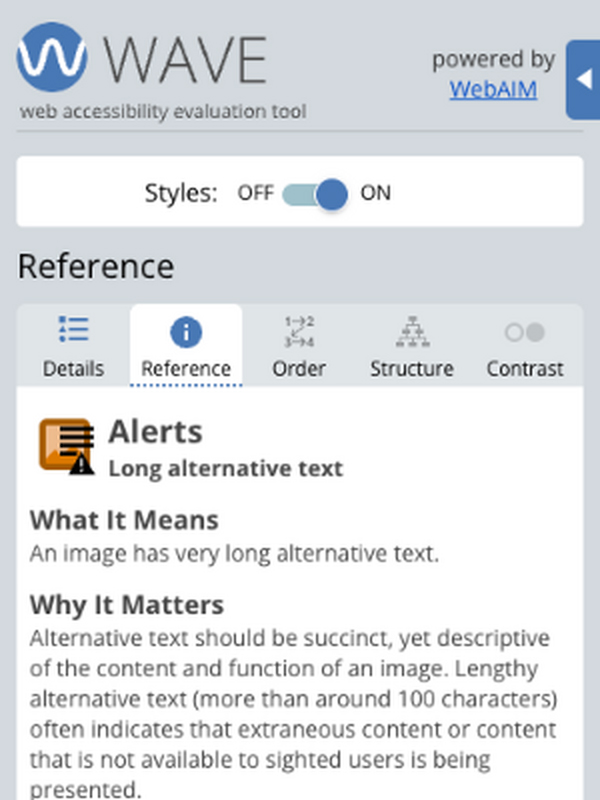
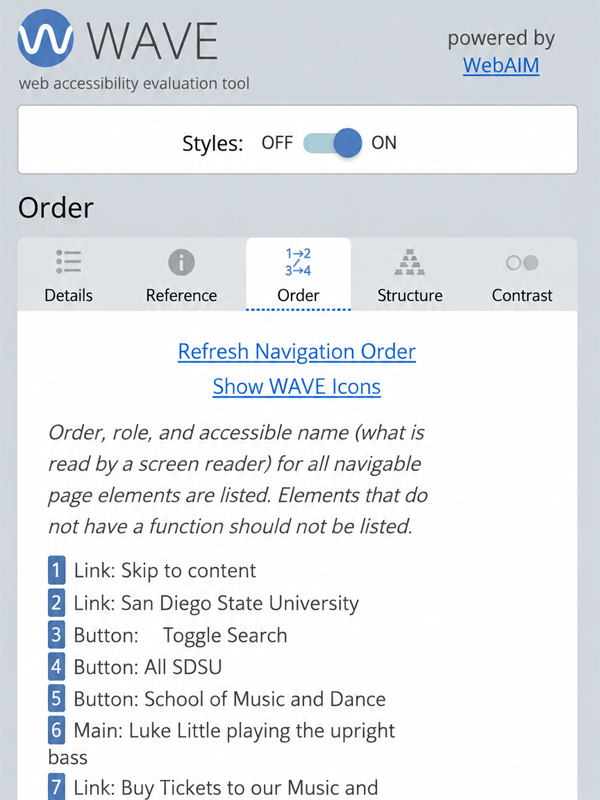
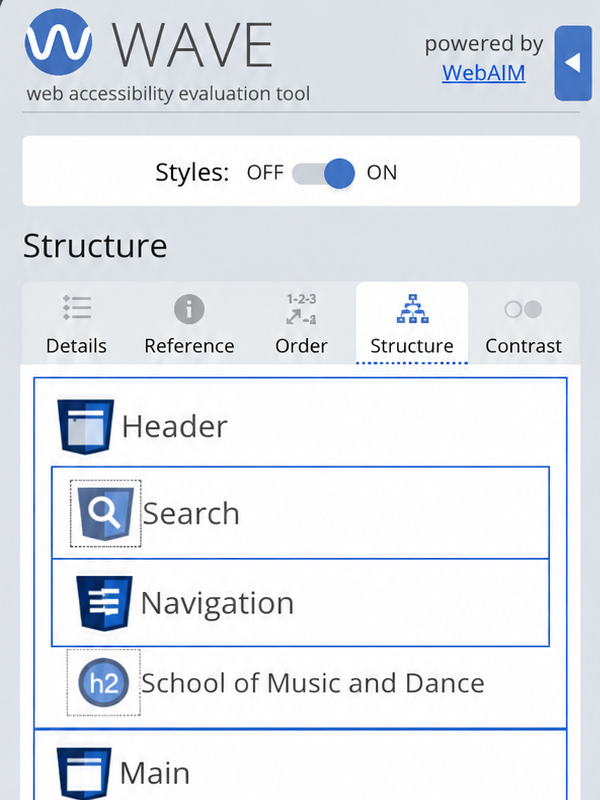
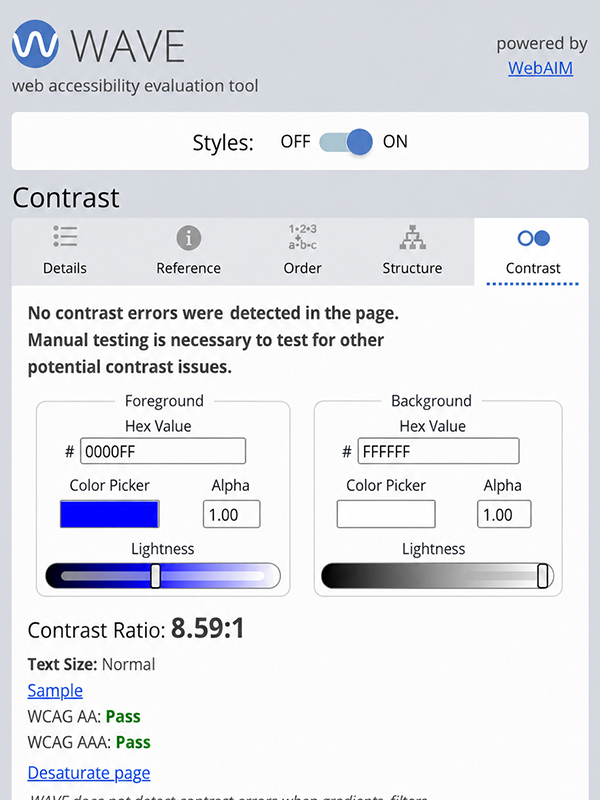
Review accessibility results View errors, contrast errors, alerts, features, structural elements, and ARIA identified on the page. Select a result to locate the affected element and examine it in context. Understand each WAVE result Learn what a result means, why it matters, how to review or correct it, and which WCAG success criteria may apply. Use this panel when you encounter an unfamiliar result. Check keyboard navigation Review the navigation order and accessible names of links, buttons, and form controls. Confirm that keyboard focus moves through the page logically and that each interactive element has a meaningful name. Review page organization Examine the page’s headings and landmark regions as a simplified outline. Check that headings follow a logical hierarchy and that page regions clearly organize the content. Evaluate color readability Identify detectable color-contrast errors and review the contrast ratio between text and its background. Use the available color tools to explore combinations that meet accessibility requirements.The five WAVE panels

Details
Reference
Order
Structure
Contrast