
Accessing Pope Tech
A quick-start guide to platform interaction
Account Creation and Access
SSO Login
If your credentials have been set up with SSO, an email confirmation will be sent to your SDSU employee email address. You will select the large green link in the message that reads "Login", or similar.
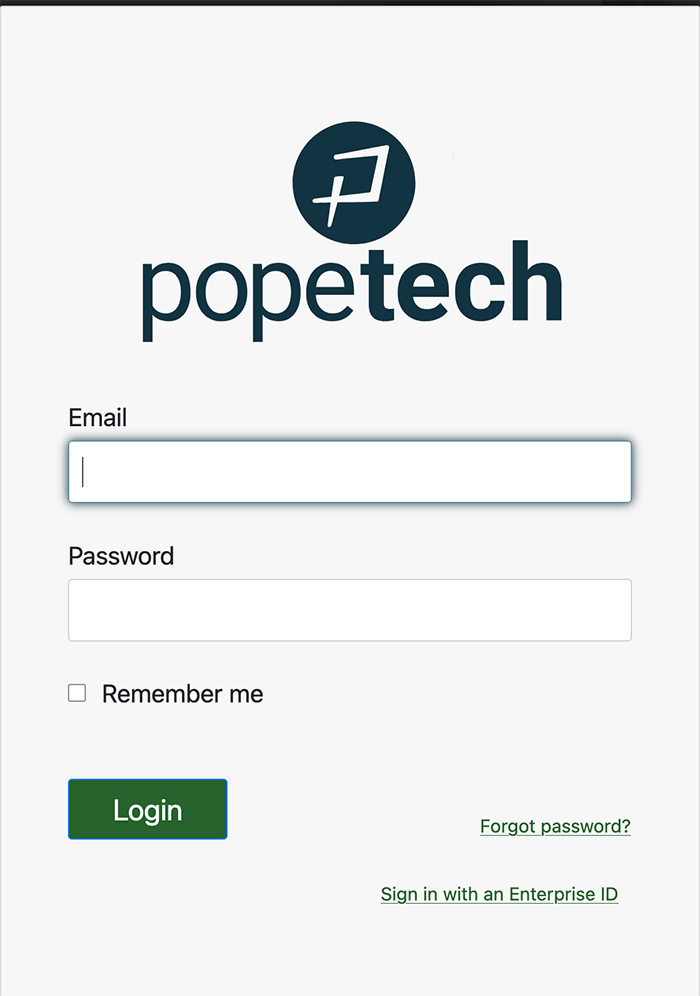
When you select the login link, you will be routed to the Pope Tech login page, and will see a window asking you to add your email and password.
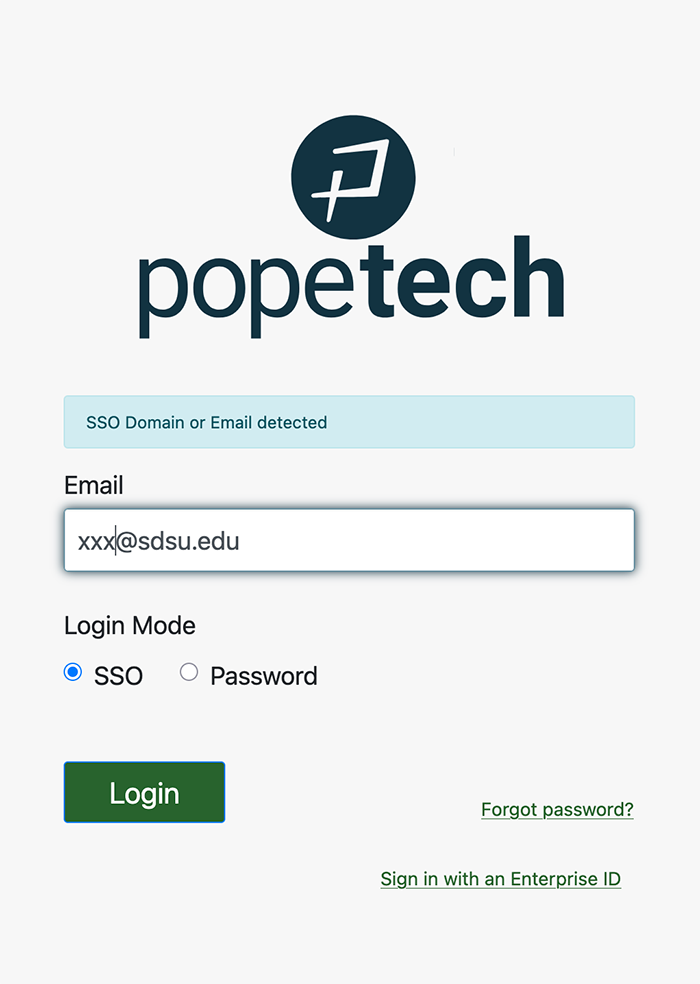
Your sdsu email will trigger the SSO recognition, and the window will alert you that SSO has been recognized. Ensure the Login Mode SSO button is selected, and click on the Login link. You will be routed to the standard SSO login method, with MFA.
Standard Non-SSO Login
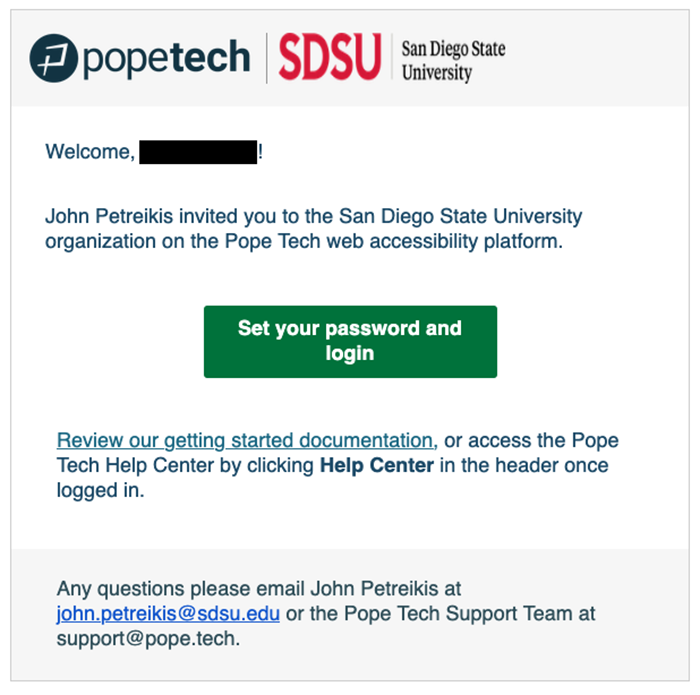
When a new account request is approved, an email confirmation will be sent to your SDSU employee email address. You will select the large green link in the message that reads "Set your password and login", or similar.
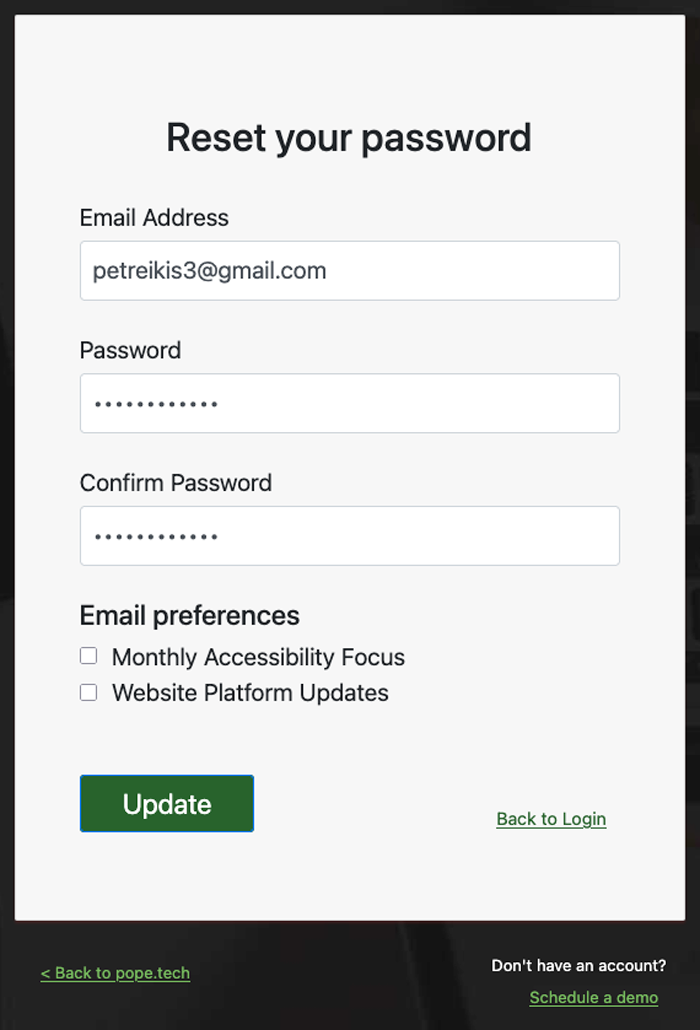
When you select the login link, you will be routed to the Pope Tech login page, and will see a window asking you to reset your password. Since you do not yet have a password to reset, you can enter your desired password, and then confirm that password.
Once you have successfully set your password, you can visit the Pope Tech login page and log into your account.
Understanding Your Pope Tech Dashboard
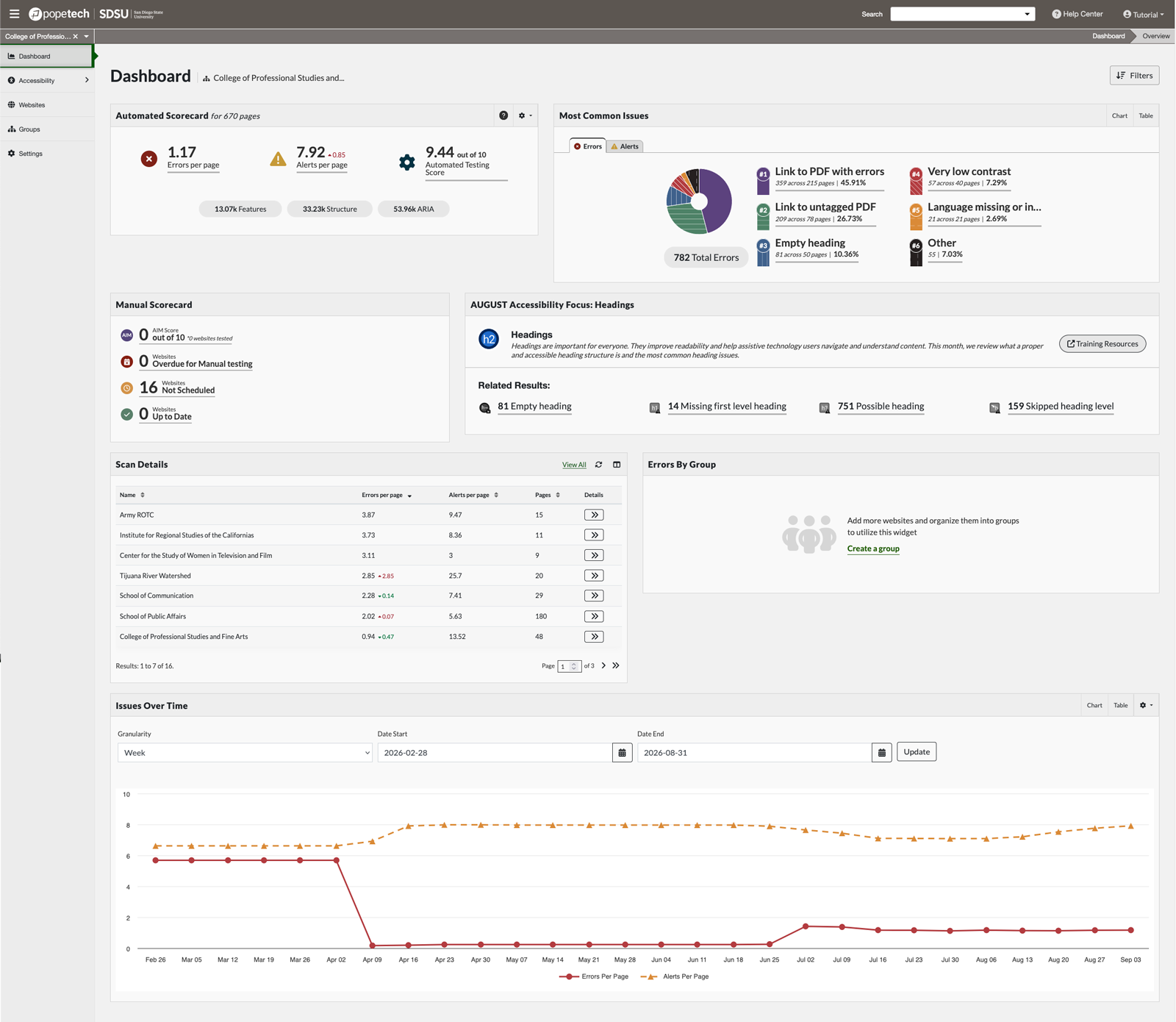
When you login to Pope Tech, you will land on your site(s) Dashboard. This a general overview region for addressing the accessibility issues with the site(s).
 Open the image full screen.
Dashboard Regions
| Region | Purpose |
|---|---|
| Automated Scorecard | A high-level summary of most recent pre-scheduled scan results. It is organized by the major WAVE categories Errors, Alerts, Contrast, Structure, Features, and ARIA. |
| Most Common Issues | A running tally of the most common errors, how many pages they affect, and the percentage of site errors each comprise. This allows you to prioritize the problems affecting the greatest number of pages |
| Manual Scorecard | Tracks websites that are overdue, not scheduled, or have not been tested for manual testing, but is not currrently being used. |
| Accessibility Focus | Selects a monthly topic, and highlights pages on your site(s) that are impacted by that months topic. It also includes a link to training resources on that topic. |
| Scan Details | A list of sites within your account, the average errors per page, pages affected, and a link out to each sites detailed report. This is similar in functionality to the "Websites" link in the left navigation bar. |
| Errors by Group | Should you administer multiple groups in your account, this will report site errors as they apply to each user group |
| Issues Over Time | This is a time customizable chart/table that shows how your site(s) accessibility has adjusted over a set time period. |
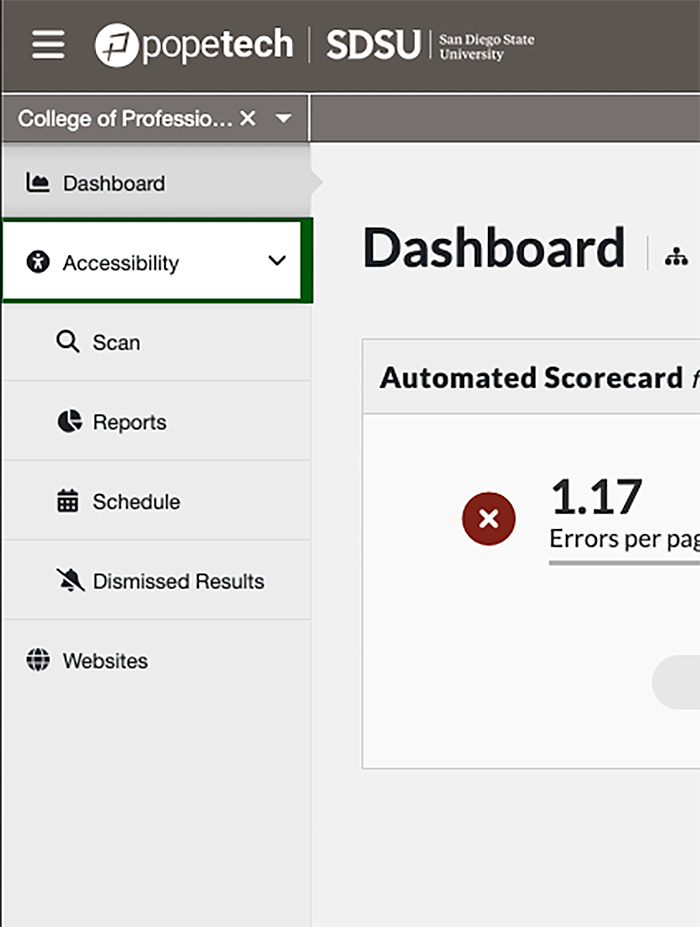
Websites Section
The Websites section is where you will find an overview of the errors and alerts on your website(s). You will be able to drill down into each site, and further to each page, to review the error and alert specifics, such as location of the errors in your source code, specific success criteria for the errors, and how to correct them. When used in conjunction with the WAVE browser extension, this is a very effective method to bring your site into compliance with the University guidelines. Learn more about WAVE on our WAVE Extension page.
Visit the Pope Tech Help Center's Drill down into dashboard data section for more detail.
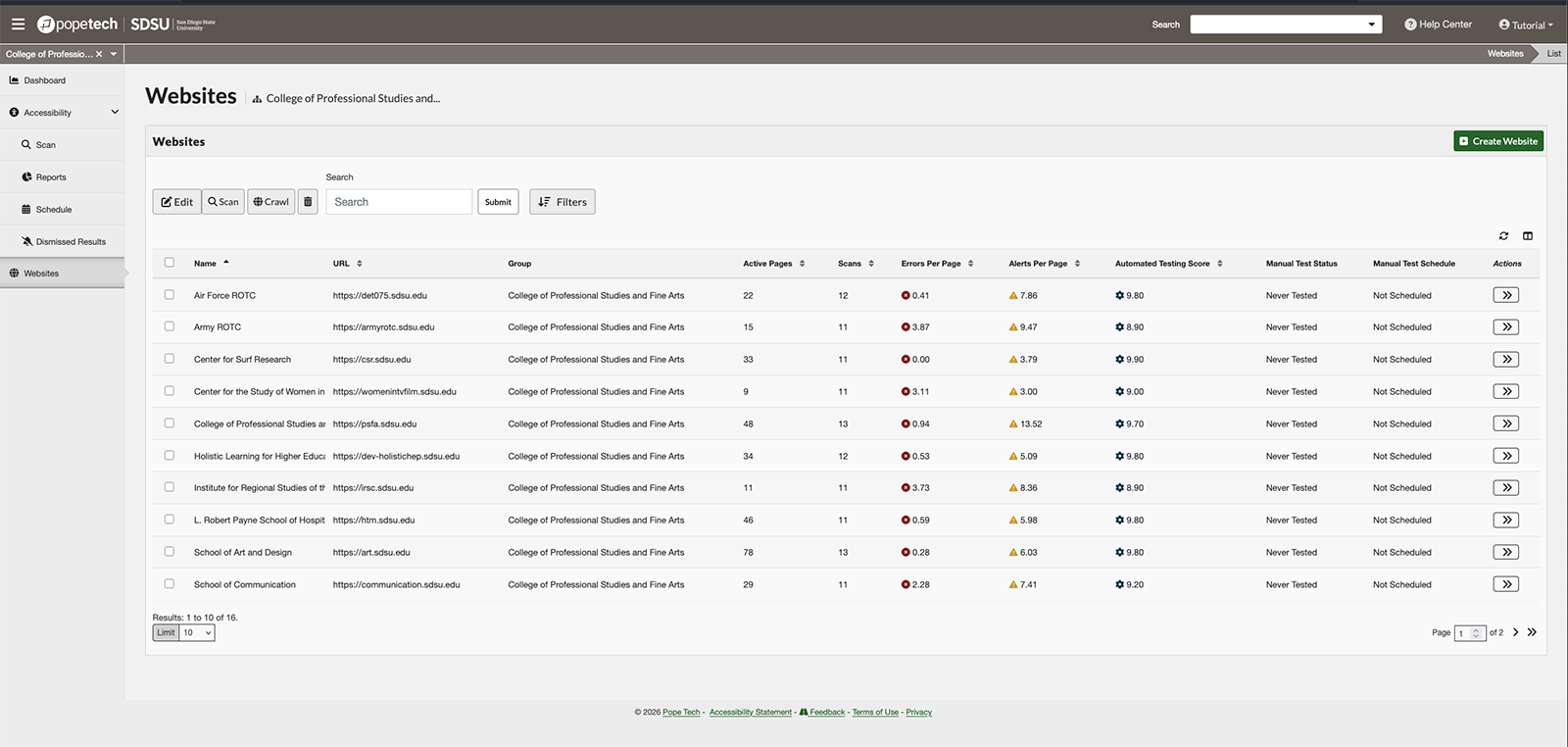 Open the image full screen.
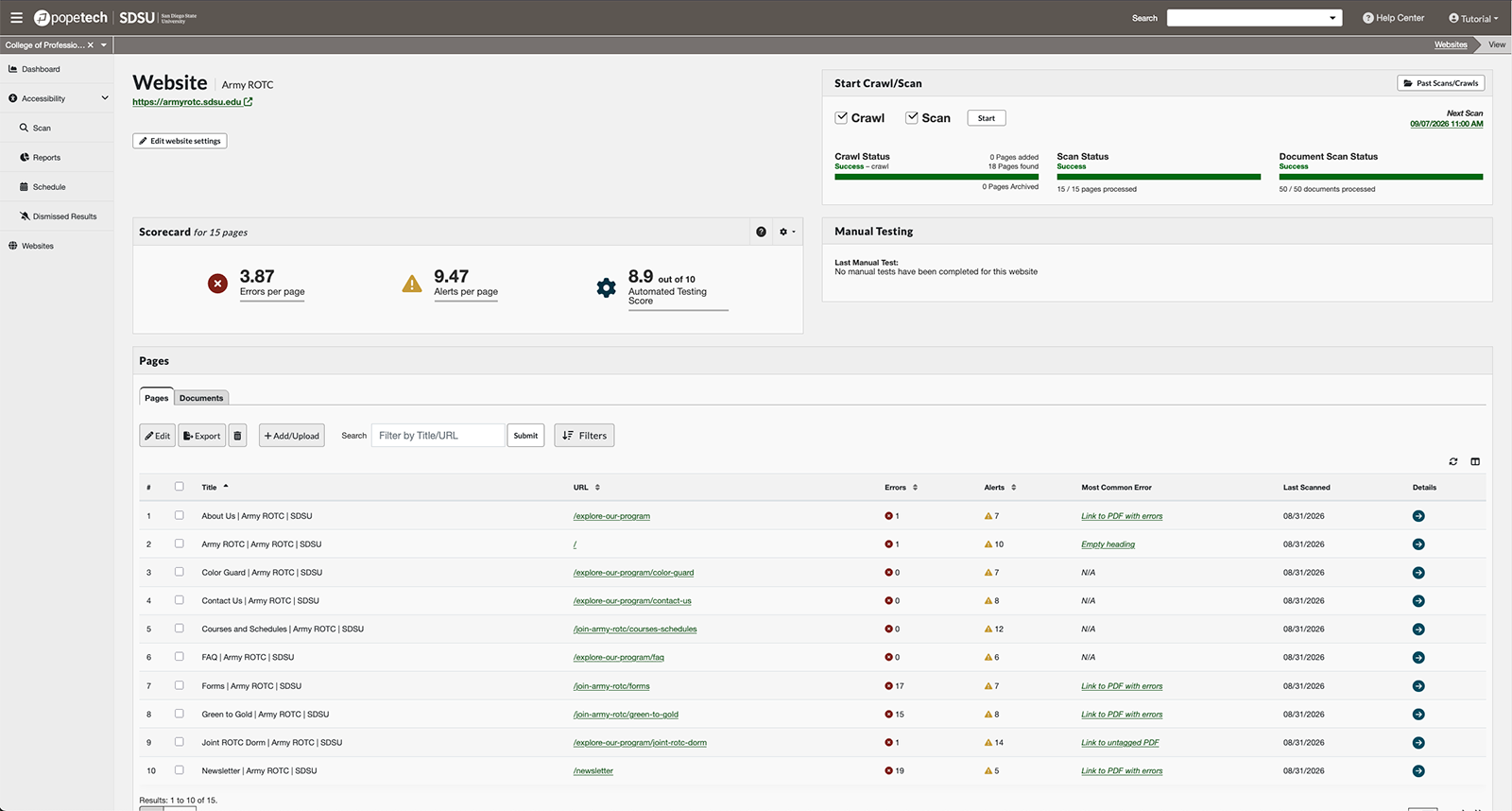 Open the image full screen.